You boot up a multiplayer game or join a Discord voice call while listening to your favorite music playlist on wireless headphones. The moment your voice channel connects or your microphone activates, your pristine, bass-rich stereo audio instantly disintegrates. Game soundtracks turn robotic and distant, music sounds like it is playing through an old AM radio, and subtle audio cues vanish entirely.
This frustrating quality collapse is not a defective headset, a corrupted sound driver, or a Windows 11 bug. It is a fundamental hardware constraint of Bluetooth radio bandwidth colliding with an outdated legacy protocol. Fortunately, you can stop Windows from degrading your audio stream. By reconfiguring your audio endpoints, disabling the Hands-Free Telephony protocol, or taking advantage of modern Bluetooth LE Audio toggles in Windows 11, you can lock in pristine high-resolution stereo sound permanently.
Why Bluetooth Audio Collapses When the Microphone Turns On
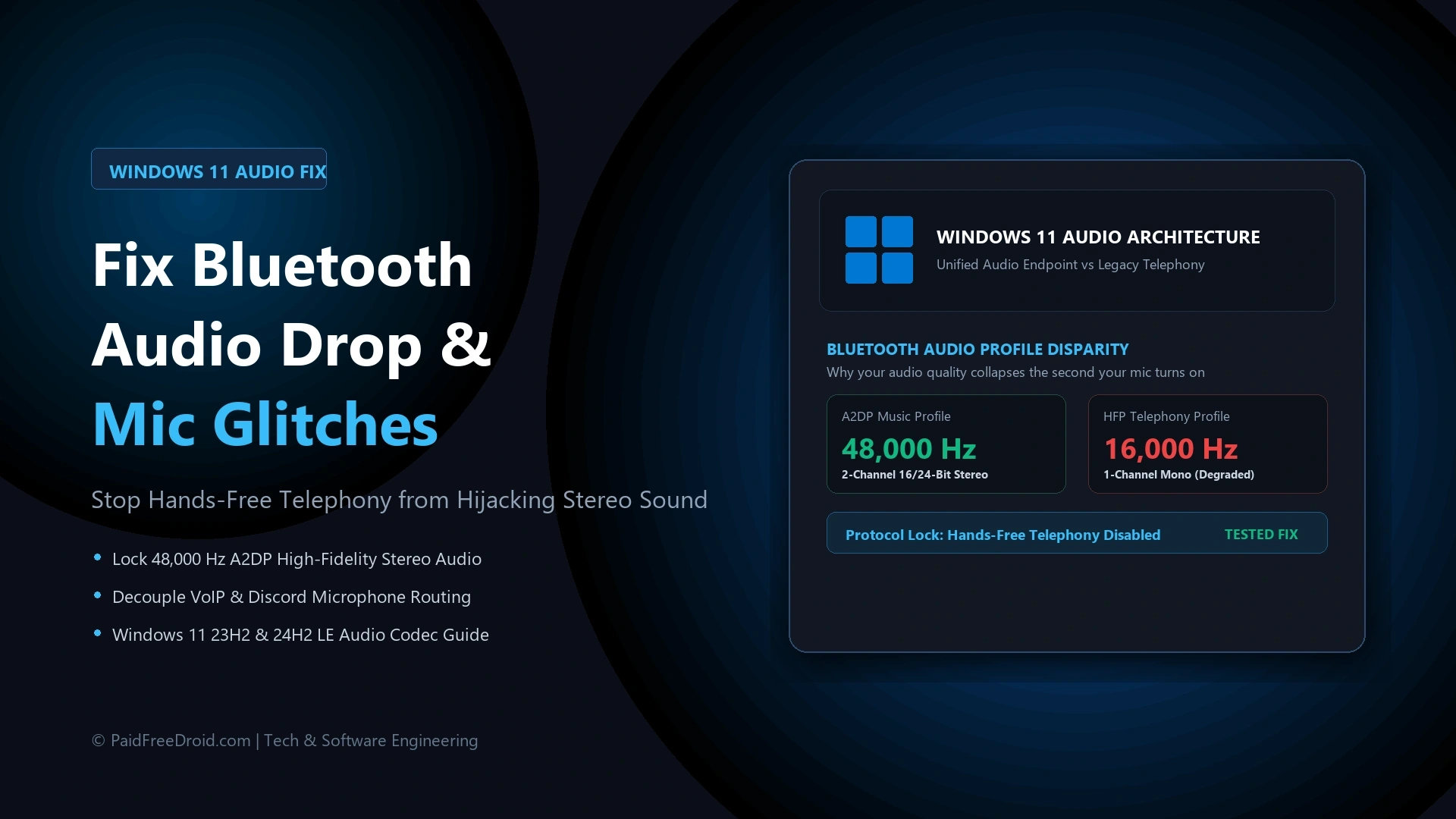
To understand the fix, you must understand how classic Bluetooth handles audio transmission. Bluetooth Classic operates under strict physical bandwidth limits capped between 2.1 Mbps and 3.0 Mbps. To deliver high-fidelity audio, wireless headphones use the A2DP (Advanced Audio Distribution Profile). A2DP utilizes efficient codecs such as AAC, aptX, or high-bitrate SBC to stream 2-channel, 16-bit or 24-bit stereo audio at sample rates of 44,100 Hz or 48,000 Hz. However, A2DP is strictly a one-way street: it only transmits audio downstream from your computer to your headphones.
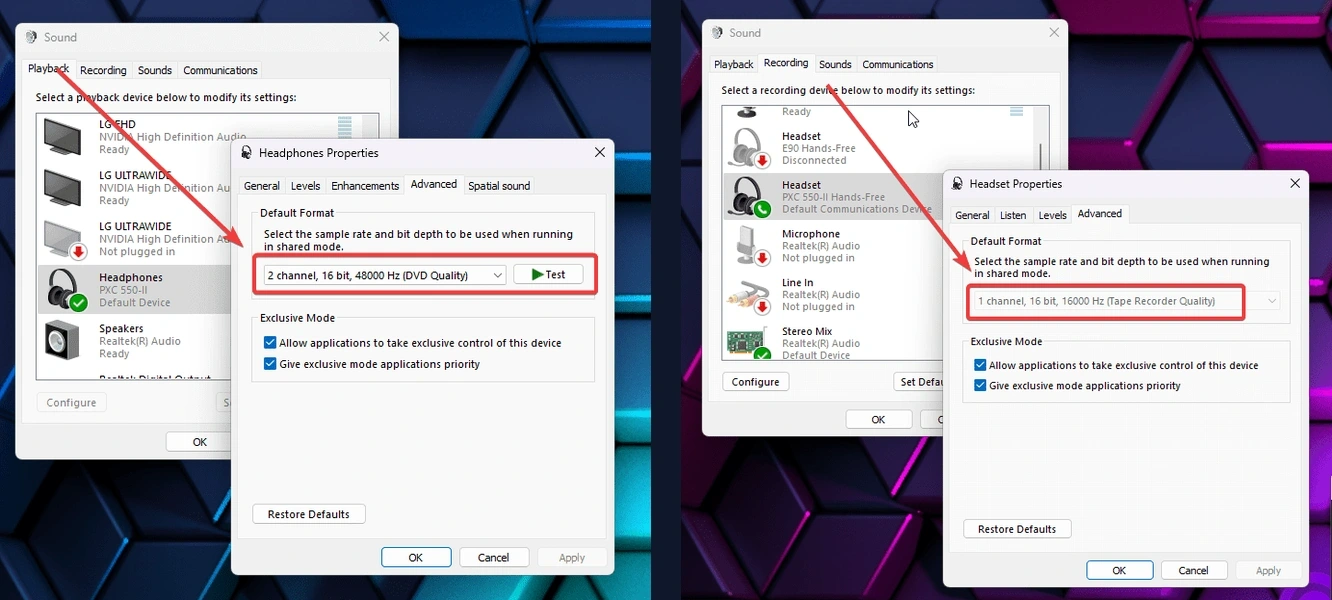
The moment an application requests microphone input (such as Discord, Zoom, Microsoft Teams, in-game voice chat, or browser recording permissions), Bluetooth is forced to open a bidirectional channel. Because legacy Bluetooth cannot support full A2DP stereo and microphone recording simultaneously, Windows switches the device profile to HFP (Hands-Free Profile) or HSP (Headset Profile).
Originally engineered in the early 2000s for mono in-car telephone calls, HFP slashes incoming audio bandwidth to make room for voice return. Your audio stream is instantly compressed down from 48,000 Hz high-fidelity stereo to an 8,000 Hz or 16,000 Hz mono signal using basic codecs like CVSD or mSBC. In older versions of Windows, these appeared as two separate devices: “Stereo Headphones” and “Hands-Free AG Audio”.
Windows 11 introduced the Unified Audio Endpoint, merging both profiles into a single device name in your system volume menu. While this eliminated the confusion of choosing between two devices, it introduced an invisible annoyance: Windows 11 now dynamically switches your headphones into degraded Hands-Free mode under the hood without warning whenever a microphone stream opens. Premium headsets, including hardware like the Sony WH-CH730N and WH-CH530 wireless headphones, remain bound by these universal Bluetooth radio limits on desktop operating systems.
Method 1: Permanently Disable Hands-Free Telephony in Device Services
If you game, edit video, or participate in calls using an external USB microphone, a webcam microphone, or your laptop integrated microphone array, you should completely unbind the Hands-Free Telephony service from your Bluetooth headphones. This prevents Windows from ever downshifting your headphones into mono telephone mode.
- Press the Windows Key + R shortcut on your keyboard to open the Run dialog box.
- Type
shell:control printersand press Enter. This directly opens the classic Devices and Printers control console. - Scroll through the Devices list and locate your connected Bluetooth headphones or earbuds.
- Right-click your headphones icon and select Properties from the context menu.
- In the pop-up Properties window, navigate to the Services tab. Allow 3 to 5 seconds for Windows to query your device Bluetooth SDP services.
- Locate the checkbox labeled Handsfree Telephony and uncheck it. Ensure that Audio Sink and Remote Control remain checked.
- Click Apply, then click OK.
Once disabled, disconnect your headphones from Bluetooth and reconnect them. Windows will now recognize your headphones purely as an A2DP stereo playback receiver. Even when Discord or a game launches, your audio will remain locked at full 48,000 Hz stereo resolution without volume drops or crackles. Note that this method disables the built-in microphone on your headset, requiring you to select a separate input mic in your chat applications.
Method 2: Decouple Audio Endpoints in Windows 11 Sound Settings
If you prefer not to modify legacy service properties, or if you regularly switch between different audio setups on high performance gaming PCs, you can prevent quality drops by explicitly isolating your default communication input endpoints in modern Windows 11 Settings.
- Open Settings by pressing Windows Key + I and navigate to System > Sound.
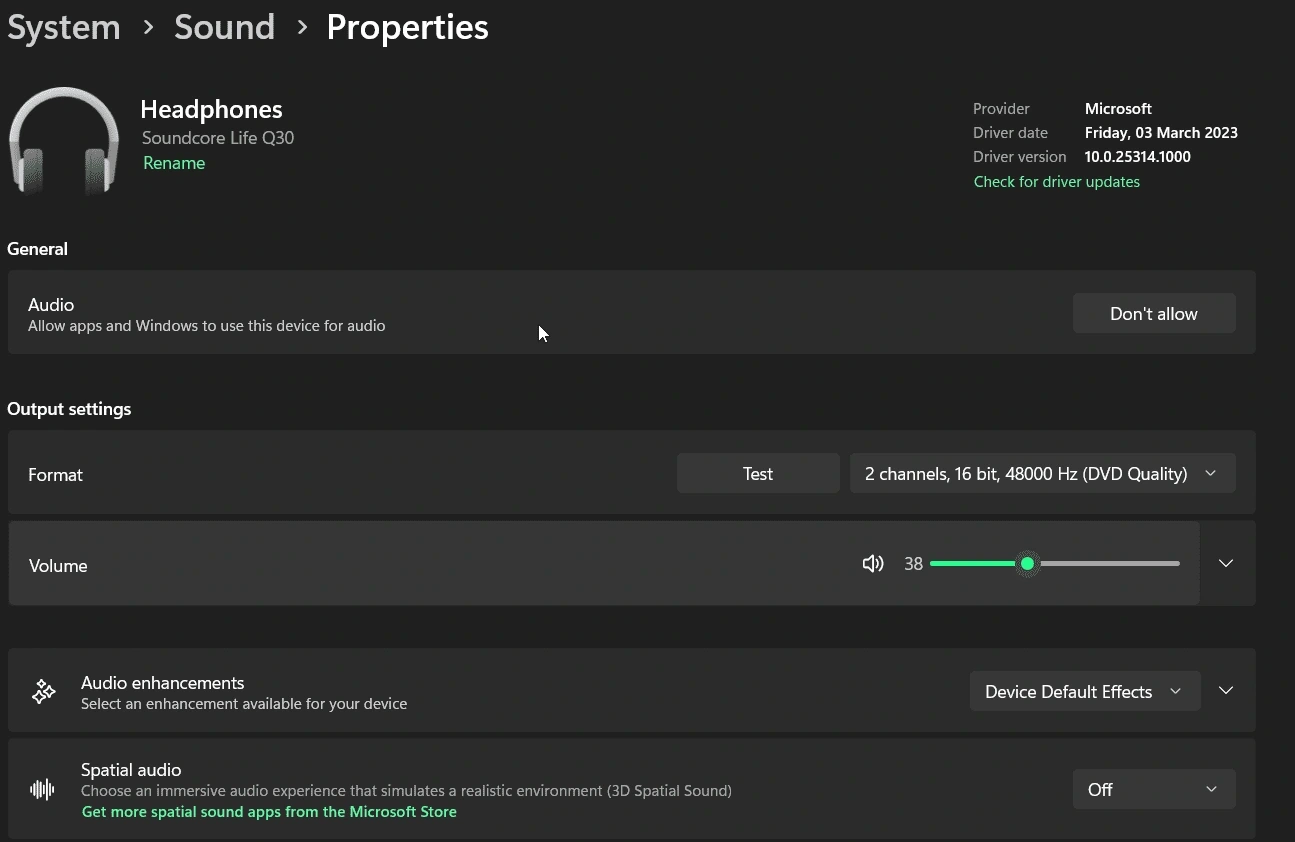
- Under the Output section, click on your Bluetooth headphones to open their detailed properties.
- Verify that the Output settings format is locked to 2 channels, 16 bit, 48000 Hz (DVD Quality) or 24 bit, 48000 Hz (Studio Quality). If spatial audio or audio enhancements cause distortion, set Audio enhancements to Off.
- Navigate back to System > Sound and scroll down to the Input section.
- Select your dedicated USB microphone, webcam mic, or internal laptop microphone. Click the small arrow next to it, and under Set as default sound device, select Use as default for communications.
- Scroll to the bottom of the Sound page and open Volume mixer. Under app-specific routing, explicitly assign communication tools like Discord, Slack, and Zoom to your dedicated input microphone rather than the Bluetooth headset.
By preventing applications from requesting the Bluetooth microphone stream, Windows 11 will never trigger the automatic downgrade to HFP, keeping your main game sound and media playback pristine.
Method 3: Enable Bluetooth LE Audio and LC3 Codecs in Windows 11 24H2
If your computer and headphones both feature modern Bluetooth 5.2, 5.3, or 5.4 radios, you can solve this bandwidth bottleneck permanently using Bluetooth LE Audio. Introduced natively in Windows 11 version 24H2 and select 23H2 builds, LE Audio replaces the old A2DP and HFP split with the modern LC3 (Low Complexity Communication Codec).
Unlike classic Bluetooth, LC3 is engineered from the ground up to support simultaneous high-definition stereo playback and clear microphone input over independent isochronous channels. This means your microphone can stay active in Discord without reducing your listening stream to low-bandwidth telephone quality.
- Open Settings and click on Bluetooth & devices.
- Select Devices and verify that your Bluetooth headset is connected.
- Look for the Audio or Device settings card. If your hardware is compatible, you will see a toggle labeled Use LE Audio when available.
- Switch the toggle to On.
- Disconnect and reconnect your headphones to renegotiate the Bluetooth session over LC3.
If Windows continually re-enables the legacy Hands-Free profile after major operating system updates, you can apply a system-wide block via Windows Services. Press Windows Key + R, type services.msc, locate the Bluetooth Audio Gateway Service, set its Startup type to Disabled, and click Stop. For more power-user troubleshooting workflows and performance tweaks, explore our collection of essential PC utilities and tools.
Frequently Asked Questions About Windows 11 Bluetooth Audio
Can I use my Bluetooth headset microphone while keeping high-resolution stereo audio?
Under classic Bluetooth (Bluetooth 4.0 through 5.1), no. It is physically impossible due to the transmission bandwidth limitations of the classic Bluetooth specification. You must either use Bluetooth LE Audio on compatible 24H2 hardware or pair your Bluetooth headphones with a separate external microphone.
Why does Hands-Free Telephony turn itself back on after restarting?
Whenever Windows 11 installs a cumulative update or re-enumerates a Bluetooth adapter driver, it may refresh device capabilities and re-enable default services. To prevent this, disable the Bluetooth Audio Gateway Service in services.msc or disable the virtual Hands-Free device under Device Manager > Sound, video and game controllers.
Does turning off Hands-Free Telephony introduce audio latency in games?
No. In fact, locking your headphones to A2DP stereo often improves latency consistency. HFP profile switching introduces buffer renegotiation delays, which frequently cause the audio stuttering and momentary pauses observed when loading into game lobbies.
Why is the Services tab missing in my Bluetooth device properties?
If the Services tab does not appear when opening device properties through shell:control printers, your manufacturer Bluetooth driver may be using a modern UWP extension. In that case, navigate to Device Manager, expand Sound, video and game controllers, right-click the entry ending in Hands-Free AG Audio, and select Disable device.
Stay Ahead in the Tech World
Join our community for breaking news, exclusive gadgets coverage & direct admin support.