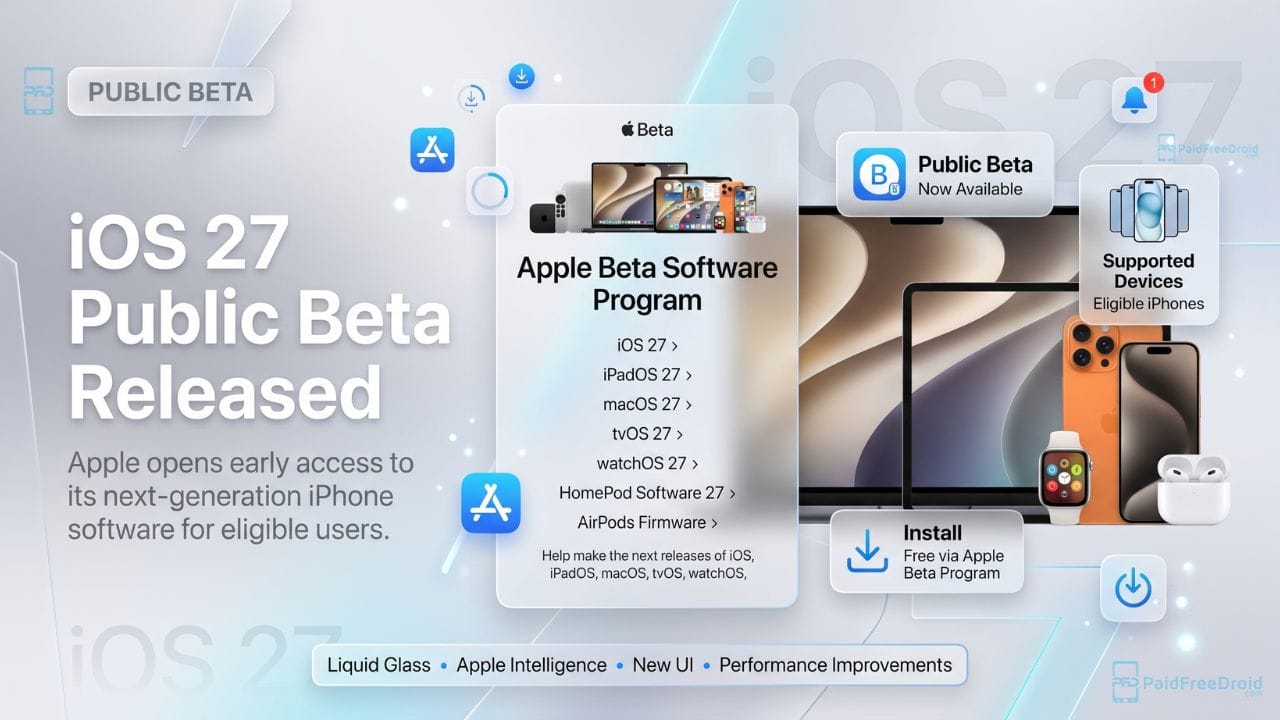
Apple has officially opened the doors to its next-generation smartphone operating system, making the iOS 27 Public Beta available to all users without requiring a paid developer account. Following weeks of developer-exclusive testing, this public release offers a significantly more stable build for adventurous iPhone owners looking to test out upcoming features ahead of the official autumn rollout.
If you want to get an early hands-on look at the revamped Siri AI, the new Liquid Glass UI customizations, and notable system speed improvements, here is your complete PFD guide on how to safely download and install the iOS 27 Public Beta today.
Is Your iPhone Compatible? Full iOS 27 Supported Devices List
Before preparing your device for a software upgrade, you need to verify that your hardware makes the cut. While rumors circulated that Apple would drop support for older devices, the official compatibility list confirms that every device back to the iPhone 11 will support the core iOS 27 update.
However, there is a major catch regarding artificial intelligence: while older hardware receives system optimizations and UI redesigns, the advanced Siri AI and Apple Intelligence features strictly require an iPhone 15 Pro or newer.
Here is the complete breakdown of supported devices and feature tiers:
| iPhone Series / Lineup | Core iOS 27 Support | Siri AI & Apple Intelligence |
| iPhone 17 🏆 Series (17, 17 Air, 17 Pro, 17 Pro Max, 17e) | Yes | Full Support |
| iPhone 16 Series (16, 16 Plus, 16 Pro, 16 Pro Max, 16e) | Yes | Full Support |
| iPhone 15 Series (15, 15 Plus, 15 Pro, 15 Pro Max) | Yes | Pro & Pro Max Only |
| iPhone 14 Series (14, 14 Plus, 14 Pro, 14 Pro Max) | Yes | No (Core iOS features only) |
| iPhone 13 Series (13 Mini, 13, 13 Pro, 13 Pro Max) | Yes | No (Core iOS features only) |
| iPhone 12 Series (12 Mini, 12, 12 Pro, 12 Pro Max) | Yes | No (Core iOS features only) |
| iPhone 11 Series (11, 11 Pro, 11 Pro Max) | Yes | No (Core iOS features only) |
| iPhone SE (2nd Gen & 3rd Gen) | Yes | No (Core iOS features only) |
Note on Older Hardware: If you are still using an iPhone X, iPhone XR, iPhone XS, or an original 1st Generation iPhone SE, your device has officially reached software end-of-life and cannot install the iOS 27 beta.
Pre-Installation Checklist: Protect Your Data First
Before rushing into your device settings, remember that beta software is inherently pre-release and can occasionally cause app crashes, battery drain, or unexpected performance glitches. Take two essential steps before proceeding:
- Create a Full Backup: Always back up your entire iPhone to iCloud or a Mac/PC before installing any beta software. If you ever need to revert back to your previous iOS version, an archived backup is the only way to restore your personal data safely.
- Check Your Available Storage: Major beta releases require significant storage real estate to download, unpack, and execute cleanly. It is strongly recommended to have at least 50 GB to 70 GB of free storage available on your iPhone before initiating the update.
Step-by-Step Guide: How to Install iOS 27 Public Beta
Apple has drastically simplified the beta enrollment process in recent years, completely eliminating the need to download clunky third-party configuration profiles. Your beta access is now linked directly to your Apple Account.
Follow these exact steps to install the update:
- Enroll in the Beta Program: Open Safari on your iPhone and navigate to the official Apple Beta portal at http://beta.apple.com.
- Sign In: Tap Sign In and authenticate using the exact same Apple ID / Apple Account currently active on your iPhone. If this is your first time participating, accept the standard Apple Beta Software Program terms and conditions.
- Navigate to Settings: Once your account is enrolled, close Safari and open your iPhone’s native Settings app.
- Access Software Update: Go to General > Software Update.
- Select the Beta Tier: Tap on the Beta Updates menu row. From the list of available developer and public tracks, select iOS 27 Public Beta.
- Download and Install: Tap Back to return to the main Software Update screen. The iOS 27 Public Beta package should now appear. Simply tap Download and Install, enter your device passcode, and keep your iPhone plugged into a charger while the installation completes.
What If the “iOS 27 Public Beta” Option Doesn’t Appear?
If you navigate to Beta Updates and cannot see the iOS 27 Public Beta option, try the following troubleshooting fixes:
| Potential Cause | How to Resolve the Issue |
| Account Mismatch | Verify that the Apple Account listed at the bottom of the Beta Updates screen is the exact same email address you used to register at beta.apple.com. |
| Server Sync Delay | Occasionally, Apple’s servers take a few minutes to recognize a new enrollment. Close the Settings app completely from your multitasking tray, wait 5 to 10 minutes, and check again. |
| Automatic Updates Toggle | Try briefly switching off Download iOS Updates under Automatic Updates, tap Back, and check if the menu refreshes to show the public beta option. |
What’s New in iOS 27?
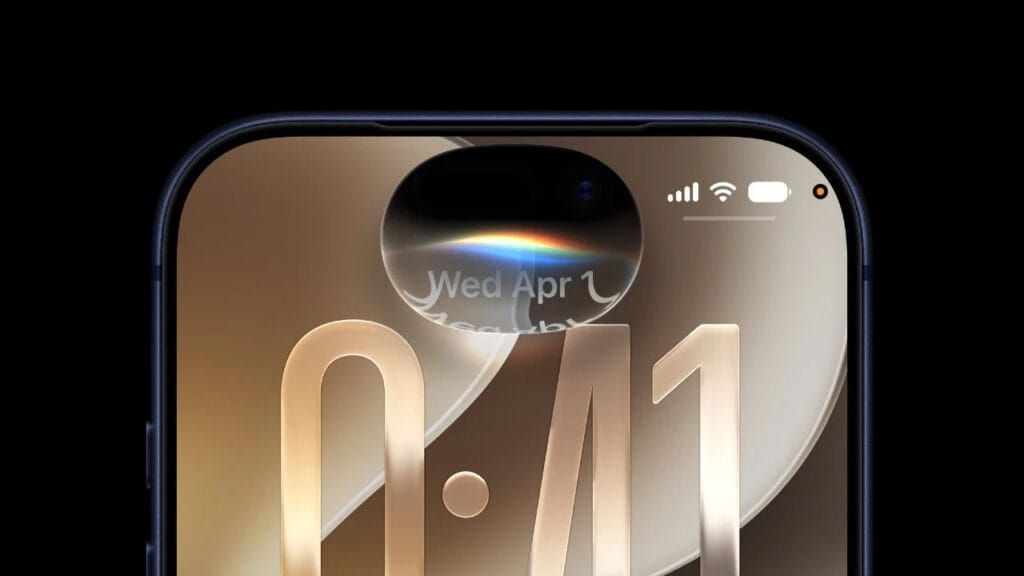
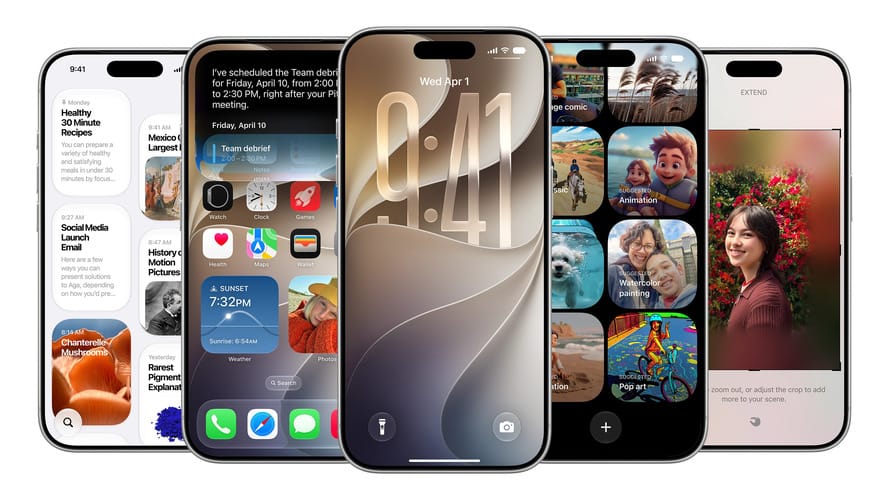
Once your device reboots, you will be running Apple’s latest software architecture. Key highlights of this release include:
- Siri AI: A completely revamped, conversational voice assistant powered by generative AI models, featuring deeper app awareness and a dedicated chatbot-style interface.
- Liquid Glass Refinements: An updated UI language featuring customizable transparency sliders to enhance system readability.
- Major Speed Gains: System-wide optimizations that allow apps to launch up to 30% faster and AirDrop transfers to complete up to 80% faster.
- Smarter Photos App: An upgraded AI Clean Up tool that removes unwanted background objects and distractions with significantly better precision.
PFD Verdict: Installing a public beta is always a balancing act between experiencing cutting-edge features early and dealing with occasional software bugs. If you rely on specific banking apps or need guaranteed all-day battery life for work, consider installing iOS 27 on a secondary backup device rather than your daily driver.
Tags: iOS 27 Public Beta install, Apple Beta Software Program, how to install iOS 27, Siri AI update, iPhone software update guide, tech how-to
Stay Ahead in the Tech World
Join our community for breaking news, exclusive gadgets coverage & direct admin support.