To celebrate 25 years of the Xbox gaming brand (2001 to 2026), Microsoft has officially launched Xbox Playback. Operating as a comprehensive, lifetime gaming recap similar to Spotify Wrapped, Xbox Playback pulls historical telemetry from your entire Xbox profile across every console generation. Unlike standard annual roundups that only track the last twelve months, Xbox Playback reveals your very first Xbox game played, lifetime hours logged, top gaming years, longest play streaks, and rarest unlocked achievements. The feature is available worldwide on Xbox Series X, Xbox Series S, Xbox One, and web browsers through December 31, 2026.
Whether you want to revisit your classic Halo marathons from the original Xbox era or inspect your modern Game Pass milestones, accessing your personalized recap takes less than two minutes. This verified guide details the exact steps to unlock your Xbox Playback montage on your console, view it on mobile or PC browsers, generate high-resolution shareable stat cards, and troubleshoot missing dashboard banners.
Prerequisites and Account Requirements for Xbox Playback
Before launching your recap, ensure your gaming setup satisfies the baseline telemetry requirements:
- Supported Platforms: Xbox Series X, Xbox Series S, Xbox One, Windows 10/11 devices running the Xbox App, and any modern desktop or mobile web browser.
- Active Microsoft Account: You must sign in using the primary Microsoft account tied to your Xbox Gamertag.
- Historical Activity Baseline: Profiles must have logged at least a few hours of gameplay across any backward-compatible Xbox title or modern cloud gaming session.
- Telemetry Permissions: Your Xbox profile privacy settings must permit diagnostic and activity data collection so Microsoft’s servers can query historical playtime archives.
- Availability Window: Xbox Playback is live starting November 12, 2026, and remains accessible until December 31, 2026.
Method 1: View Xbox Playback on Xbox Series X|S and Xbox One
Console players can launch the recap directly from the primary Xbox dashboard with native controller navigation:
Step 1: Sign Into Your Primary Gamertag: Power on your Xbox console and ensure you are signed into the specific profile whose historical milestones you wish to review.
Step 2: Locate the Xbox Playback Tile: From the Xbox Home Dashboard, use the left thumbstick or D-pad to scroll down through the curated recommendation rows. Look for the promotional banner titled Your Xbox Playback is ready featuring 25th-anniversary celebratory artwork.
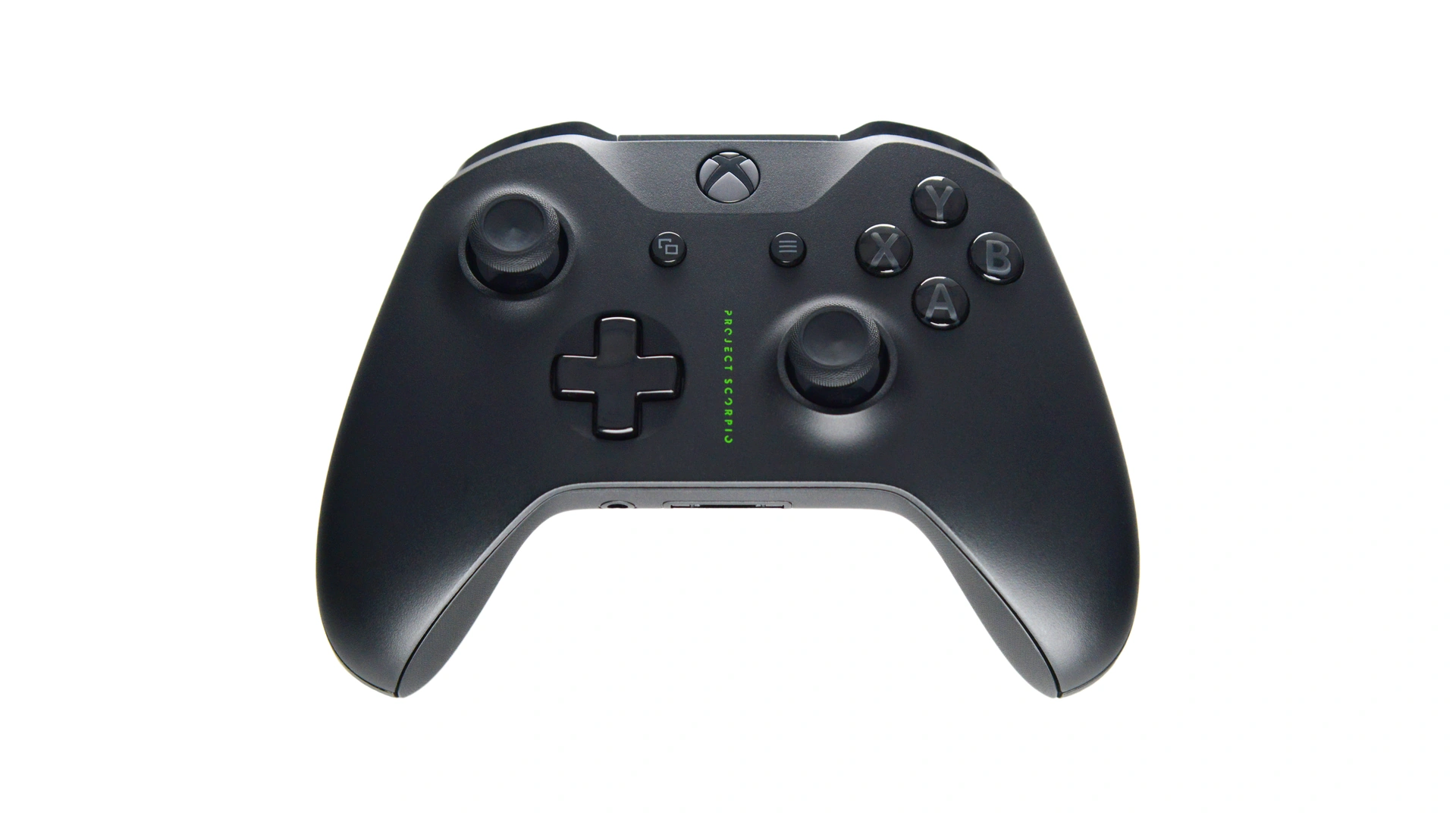
Step 3: Launch the Full-Screen Montage: Highlight the tile and press the A button on your controller. Your console will initiate an interactive, high-definition cinematic sequence set to iconic Xbox soundtrack audio.
Step 4: Cycle Through Lifetime Stat Cards: Use the bumper buttons (LB and RB) or directional arrows to navigate through each personalized data slide:
- First Game Played: The exact date and title of the first game ever registered on your Gamertag.
- Total Lifetime Playtime: Aggregate hours spent across all Xbox console generations and PC Game Pass titles.
- Peak Active Year: The calendar year you recorded your highest gaming hours.
- Longest Daily Streak: Your most consecutive days playing Xbox Live connected titles.
- Top Three Franchises: Your most-played game series ranked by cumulative completion percentage.
- Achievement Milestones: Your total Gamerscore earned and the rarest achievement in your digital showcase.
Step 5: Export Your Share Card: On the final summary slide, press the Menu button (three horizontal lines) and select Save Share Card. The system saves a high-resolution 4K capture card directly to your local console media gallery, ready for sharing via the Xbox mobile app.
Method 2: Access Xbox Playback on Web Browser and Mobile
If you are away from your console or prefer downloading digital graphics directly to your smartphone, Microsoft hosts a dedicated web portal for instant access:
Step 1: Open the Official Web Portal: Launch your preferred browser (Chrome, Edge, or Safari) on your smartphone, tablet, or PC, and navigate to the official portal:
https://www.xbox.com/XBOXPlayback
Step 2: Authenticate Your Gamertag: Click the green Sign In button located in the upper-right corner. Enter the email address and password associated with your Xbox account. If you utilize multi-factor authentication, approve the prompt on the Microsoft Authenticator app.
Step 3: Watch Your Web Montage: Once signed in, the portal automatically compiles your historical telemetry and launches an interactive web viewer. You can pause on any individual milestone or scrub through the full timeline at your own pace.
Step 4: Download Formatted Social Cards: Below the video player, click Download Share Cards. The portal provides multiple aspect ratios, including a 9:16 vertical card formatted for Instagram Stories and TikTok, as well as a 1:1 square card optimized for X and Threads.
Step 5: Share with the Global Community: Tap the direct social sharing shortcuts or upload your image directly using the official campaign hashtag #XBOXPlayback to compare your lifetime hours with other players worldwide.
Troubleshooting: Missing Playback Tile and Telemetry Errors
If the Xbox Playback banner does not appear on your console dashboard or the web portal returns an empty data message, apply these verified fixes:
Fix 1: Enable Xbox Privacy and Diagnostic Data: If your account has telemetry collection blocked, Microsoft’s backend cannot query your playtime logs. On your console, navigate to Settings > Account > Privacy & online safety > Xbox privacy > View details & customize > Data collection. Ensure Share optional diagnostic data is set to Allow. On web browsers, clear cache and ensure tracking blockers are temporarily paused on the Xbox domain.
Fix 2: Bypass Console Cache via Direct Web URL: Console home screens update in regional deployment waves. If the dashboard tile has not populated on your Xbox Series X or Xbox One, open the direct link on your phone or PC browser instead. The web portal queries the central Xbox Live database directly, bypassing local console cache delays.
Fix 3: Verify Profile Multi-Sign-In Conflicts: If multiple household members share an Xbox console, background profiles can cause the dashboard tile to load telemetry for the wrong user. Press the Xbox Guide button, select Profile & system, sign out of all secondary accounts, and restart the console.
Managing extensive gaming collections also requires steady storage hygiene. Gamers managing massive libraries alongside large releases like the GTA 6 preload and install size can cross-reference their lifetime hours to clean up dormant titles. Furthermore, PC gamers running the Xbox App on Windows can verify that background gaming services are synchronized with recent platform improvements detailed in the Windows 11 November 2026 update. For retro enthusiasts, reviewing early 2000s milestones also complements ongoing historic celebrations, such as the Road Rash 30th anniversary edition release.
Frequently Asked Questions
Does Xbox Playback include PC Game Pass and Xbox Cloud Gaming?
Yes. Any game played while signed into your Microsoft Gamertag on Windows 10/11, PC Game Pass, or Xbox Cloud Gaming is aggregated into your total playtime and milestone statistics.
When will Xbox Playback expire?
Xbox Playback is available throughout the 25th-anniversary holiday celebration and officially closes on December 31, 2026. Make sure to download your share cards before that date.
Is Xbox Playback free for all users?
Yes. Xbox Playback is completely free and does not require an active Xbox Game Pass Ultimate or Core subscription. Any account with registered gameplay history can generate a recap.
Can I view another player’s Xbox Playback?
No. Xbox Playback dashboards are private by default. You can only view another gamer’s stats if they export and publicly post their recap card or video on social platforms.